thankQ Help
If the import stops under the Validation Errors window thankQ requires the user to fix the errors and revalidate the import. Depending on what data is being imported and your configuration settings the Validation Error will be different. See Common Validation Errors for a more detailed breakdown of validation errors you may get.
The following example will walk you through two different validation error types and the steps to fix them.
1.Double click on the import under the Validation errors window:

2.Click on the arrow beside the name of the table with the error (in this example it is CONTACT):
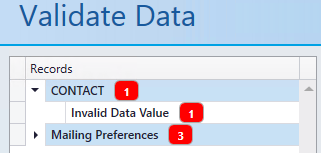
3.Click on the Invalid Data Value.
This opens the Contact form to display the error. In this case the telephone number is missing a digit. This will need to be amended or deleted to move the import onto the next stage.
If there were more than one record use the record selector to go to the next record:
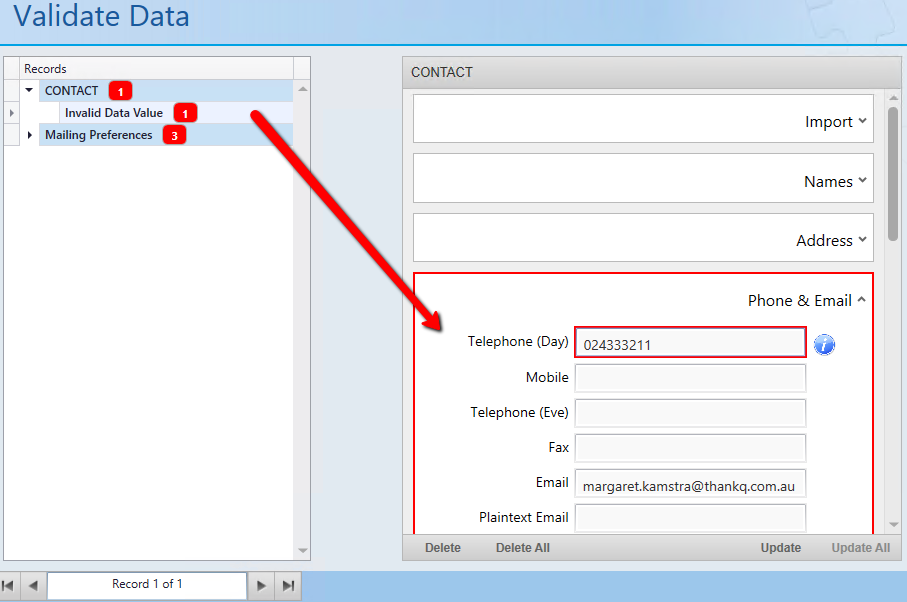
4.Click Update to update just this record once the amendment has been made. Alternatively you can choose to delete the record entirely. See the table below for what each option will do to the record(s):
Delete |
Delete this record. |
Delete All |
Delete all records which have the same error. |
Update |
Update only this record. |
Update All |
Update all records with this error to the same value you have set for this record. |
5.Click on the arrow beside Mailing Preferences.
6.Click on Invalid Data Value.
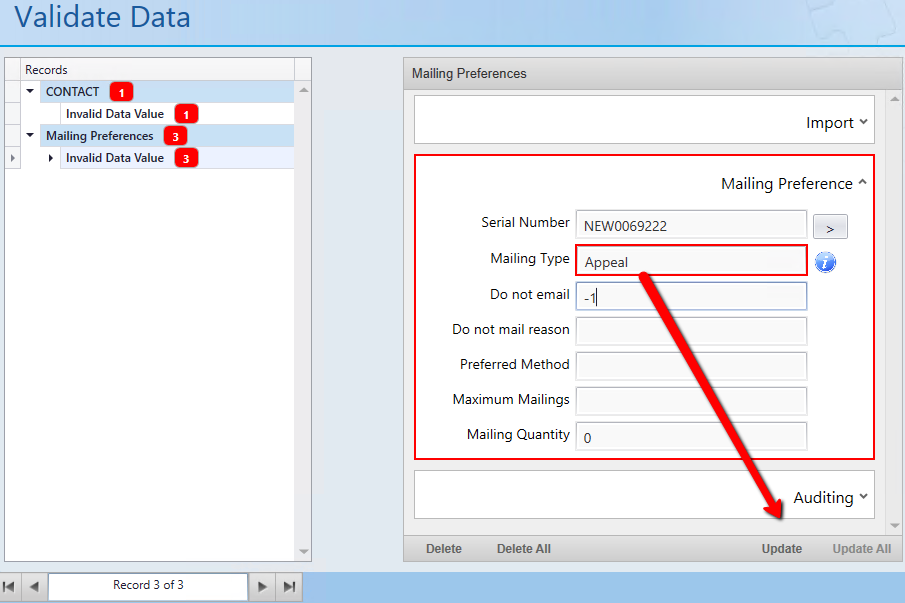
In this instance thankQ’s mailing preference has been set incorrectly on the online contact page. The actual mailing preference is Appeal not Appeals. This would mean that our online contact page has been setup incorrectly:
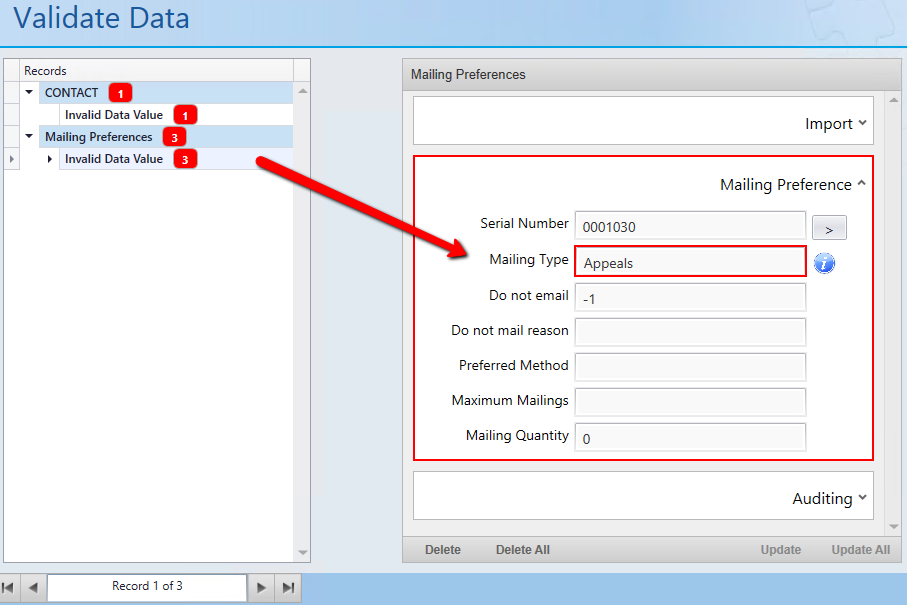
If you do not have access to amend the online form speak to the thankQ Administrator to get this amended. In the example below the Type should be Appeal and the Label should be Appeals:
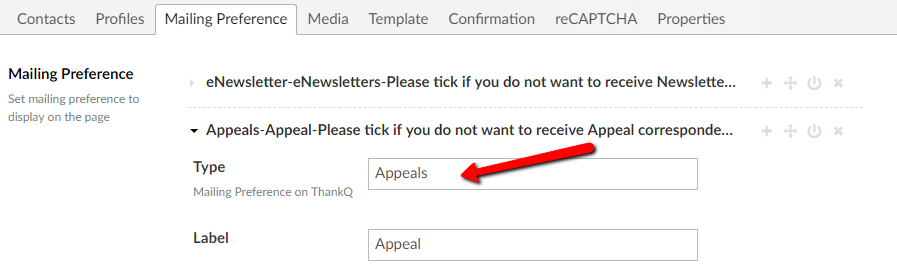
7.Edit the Mailing Type to Appeal.
8.Click Update and move to correct the next record to update:
OR
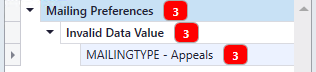
9.Click on the arrow beside Invalid Data Value.
10.Click on MAILINGTYPE – Appeals:
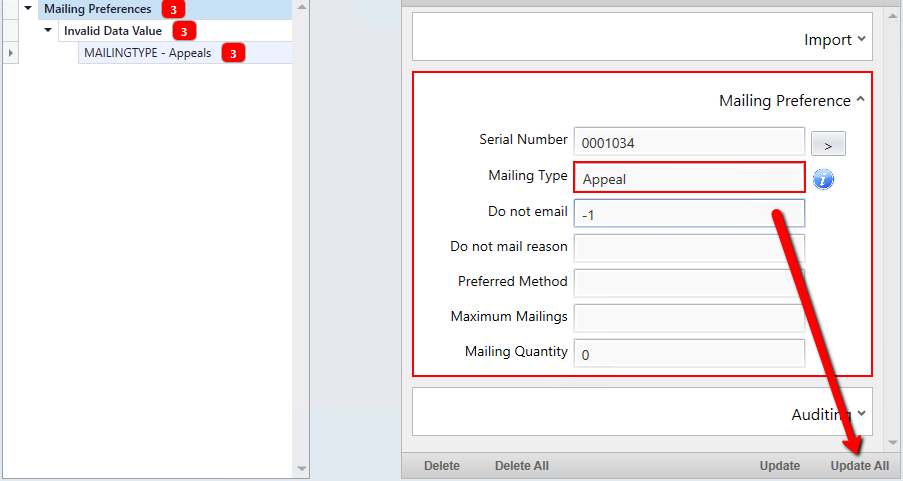
11.Amend the Mailing Type.
12.Click Update All (this will correct all of the records since they all have the exact same error):
13.Click Re-Validate on the tool bar once all records have been corrected:

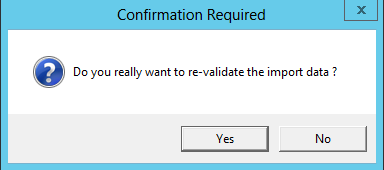
14.Click Yes to confirm:
If there are no more errors the import will move to the Recently Completed window: