thankQ Help
To save time it is possible to create a large number of sub events in bulk, enabling the sub events to share the same properties with the exception of the time and location of the sub event. For example you can set up a Museum event and then add sub events that correspond to museum times and locations that the user can book such as the 9AM-10AM Ancient Roman Exhibit on Monday or the 10-11AM Greek Exhibit on Thursday.
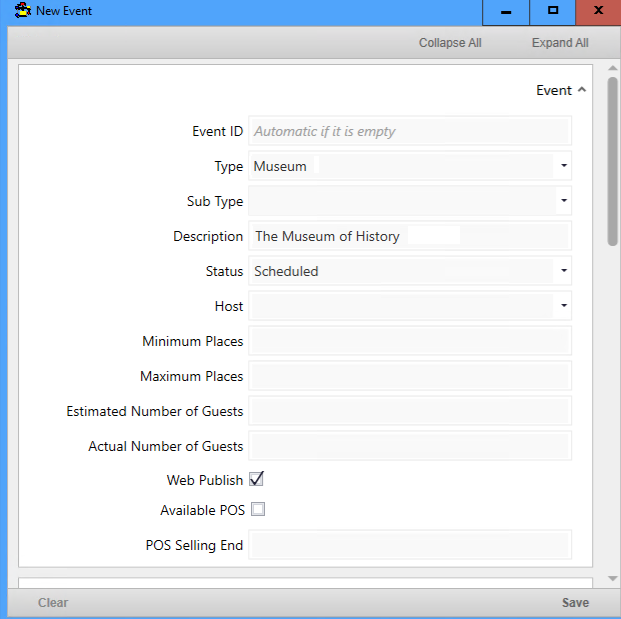
In this example we will set up a new main event, with various different times and locations as the sub events:
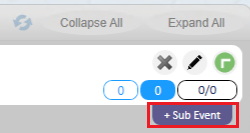
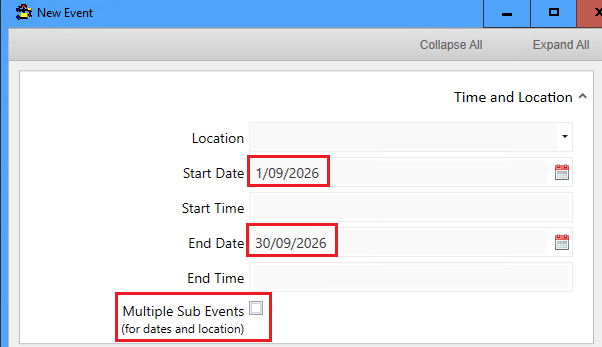
1. Start by creating a new Sub Event, scrolling down to the Time and Location section and then ticking Multiple Sub Events:
For this example the museum will be open for a month between the 1st of September and the 30th, however there is no limit to the time you can set.
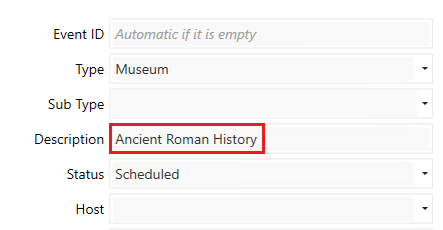
2. To differentiate this sub event change the description so that users can easily tell what these sub event are for:
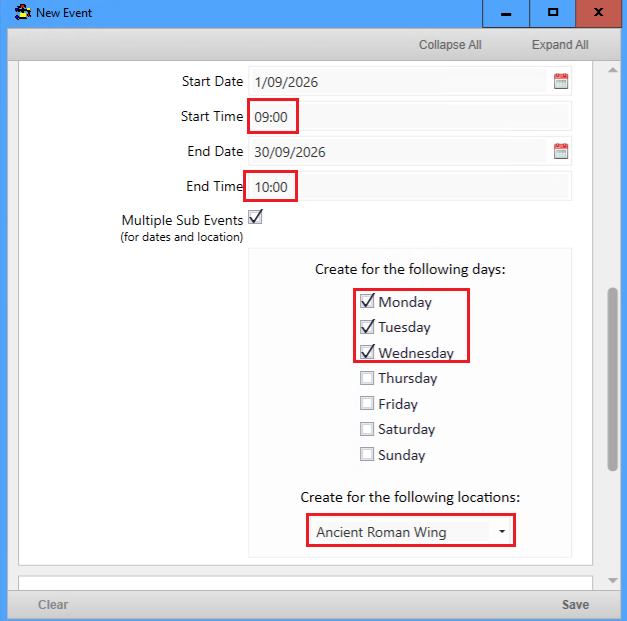
3. For this example the Ancient Roman Wing will be open from Monday to Wednesday from 9AM to 11AM in one hour sessions each. This can be set this by first unticking the days of the week that are not wanted and selecting the location in the dropdown:
Start by creating the first session: 9AM to 10AM
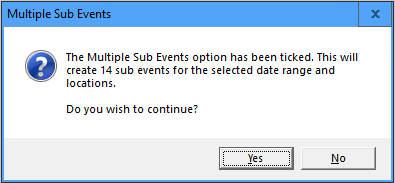
4. Press save when you are ready and you will be asked to confirm the number of new events that you want to create. In this case 14 events are created because these sub events run for a month between 01/09/26 to 30/09/26 on Mondays to Wednesdays and in only one location:
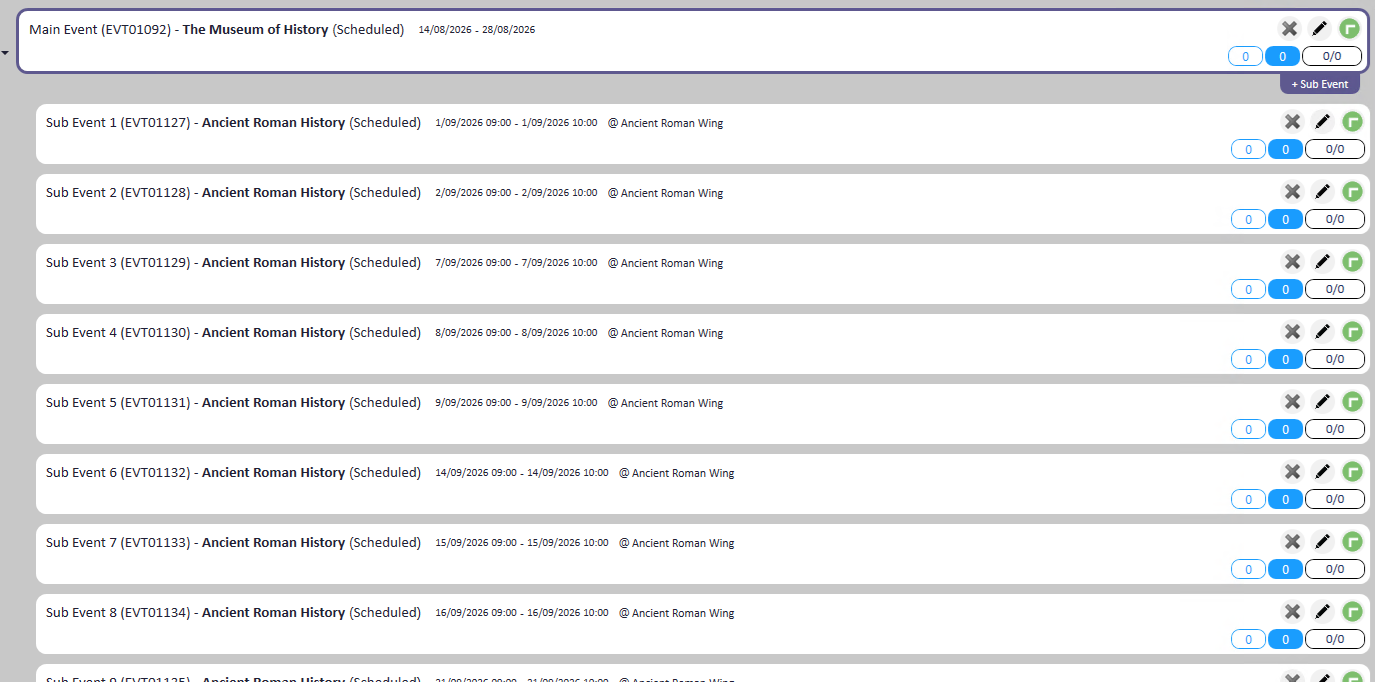
5. The fourteen new events have been created on the appropriate dates and times corresponding to Monday, Tuesday and Wednesday at 9AM to 10AM:
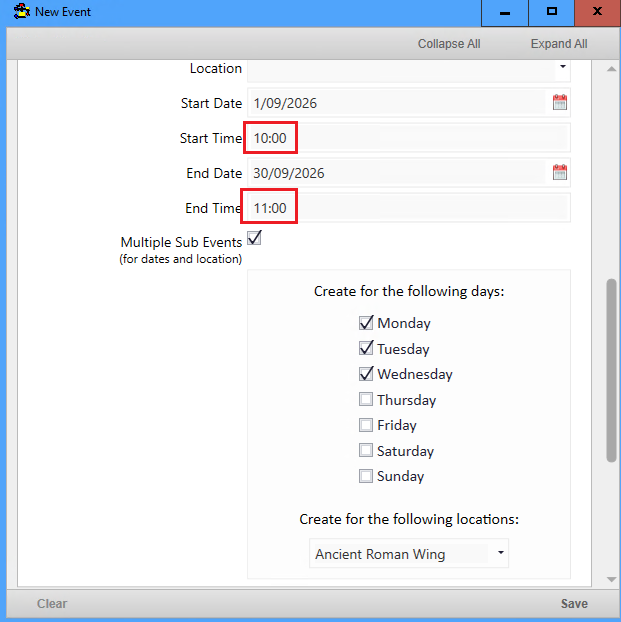
6. To create the 10AM to 11AM session the process is identical, only the start and end times are different:
7. This will again create 14 new sub events:
8. You will now have a total of 28 sub events, with two per day between 9AM and 11AM on Monday, Tuesday and Wednesday:
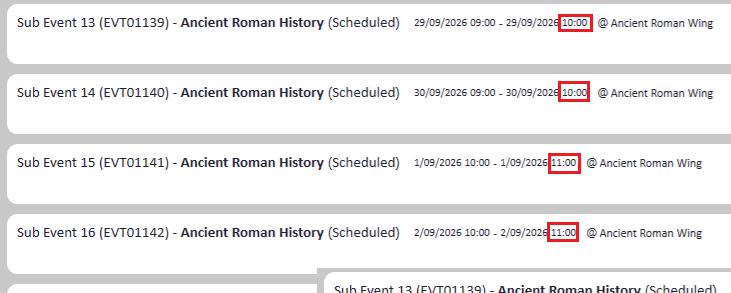
9. You can also create sub events with multiple locations as well. For example if you want to open 2 Ancient Roman Wings open on Thursday and Friday from 9AM to 10AM then the process is identical to the above except that you will need to select multiple locations:
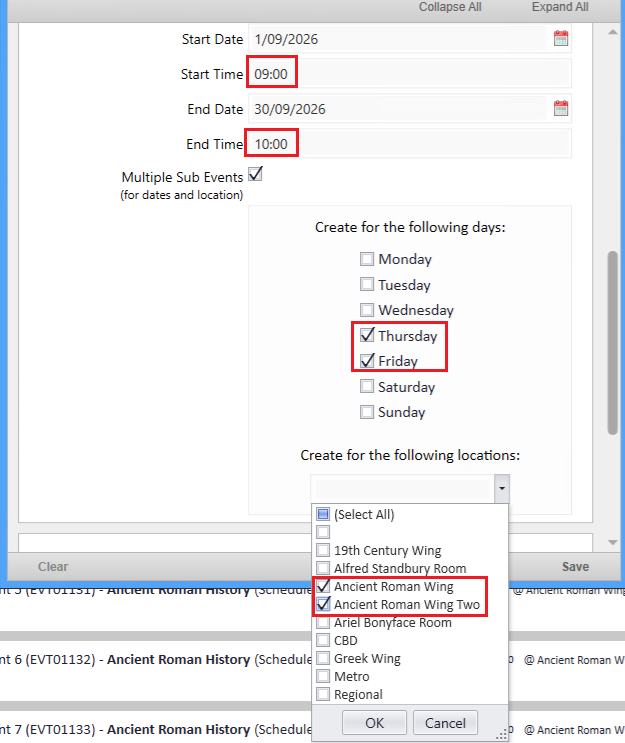
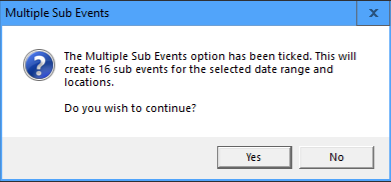
10. In this case 8 events are created for each location during the month (Thursday and Friday for 4 weeks) and since 2 locations are selected the total number of sub events created will be 16:
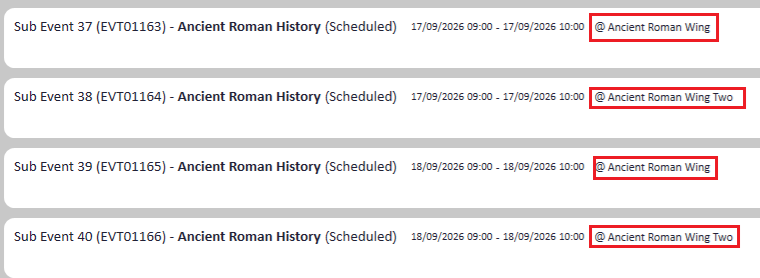
11. You can create as many new sub events as you want and you can also edit the sub events individually as well in case some of them need to be changed. See Edit a Sub Event and Delete a Sub Event for details.