thankQ Help
Locating Help Files
The help files can be found in the thankQ Main Menu:
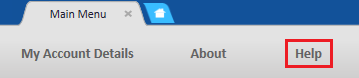
The help files can also be accessed within the Contact Home Page:

Table of Contents
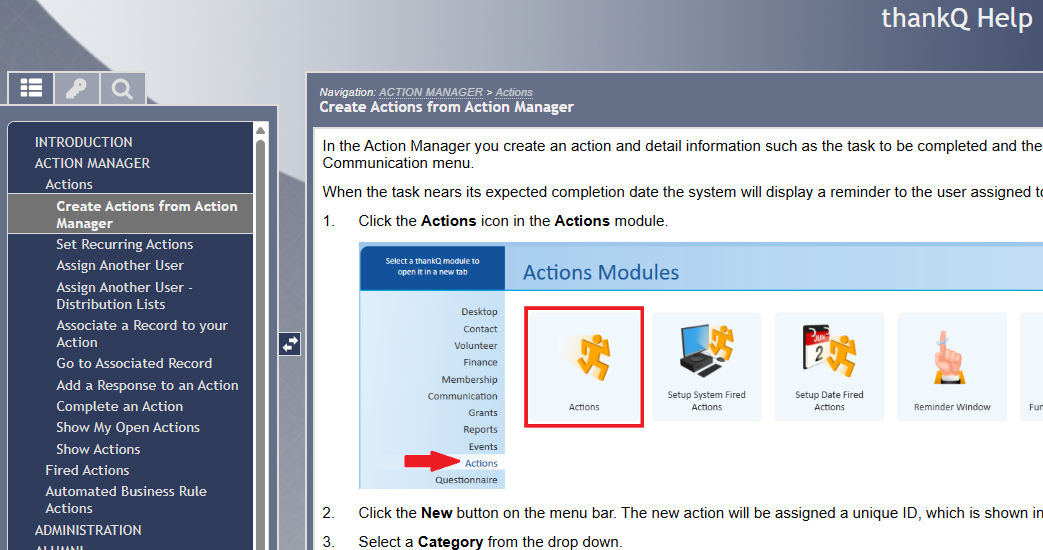
Help opens to the table of contents. Scroll down the table of contents list and click on the feature to view the help information. The steps will be displayed on the left and the help article contents on the right. An example of this is provided below:
Keyword Index
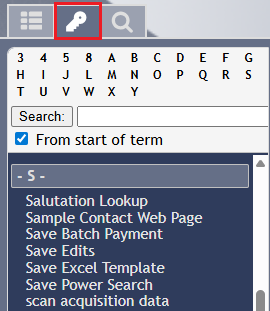
Click on the Key icon to find keywords.
Click on one of the Numeric or Alpha buttons to display a list of help items pertaining to that number or character and click on the function you require help on or enter information you are looking for in the Search field and press Enter:
Search
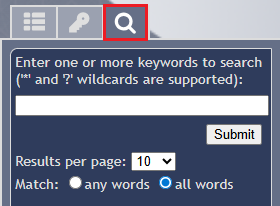
Click on the magnified glass and enter a word or phrase you are looking for and click Submit.
Wildcards can be used. These are standard industry symbols.
Search by entering Part of a Word
* = many characters e.g. smith* - will return anything starting with smith and anything after those letters
? = one character e.g. sm?th - will return any words starting with sm, one letter in the middle which could be anything, the th
Search for a Phrase
Enter quotes (") around a phrase e.g. "donation reports"
Prev, Top, Next and More
You can use the Prev or Next buttons to navigate between different help articles in the same category.
The Top option goes to top of that category.

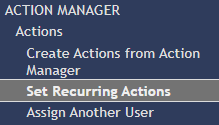
As an example of how these options work, in the picture below the Prev option will make the article switch to Create Actions from Action Manager while Next will switch it to Assign Another User. Top will switch it to Actions.
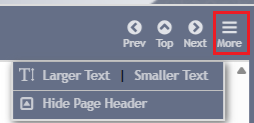
The menu for More allows you to control the text size and to show/hide the page header:
Print Topic
Use the Browser's Print option to print the topics. You can also use Ctrl-P.
All browsers are different but you can usually find Print under the Options in the top right corner.