thankQ Help
Validation errors can appear in an import for a number of reasons. To check a validation error open the Validation Errors tab and go to the specific record to check what the error is. An example of a validation error is presented below:
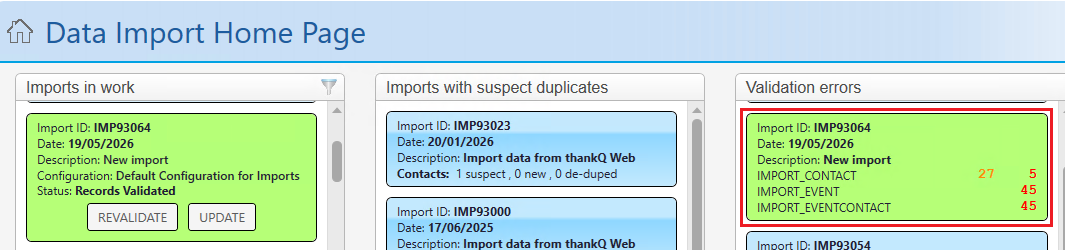
Then open the record(s) with the validation error. Please note if a record has multiple errors of the same type in the same field it will show you a count of the errors. In this example there are multiple errors for Events, Event Contacts and warnings about Contacts:
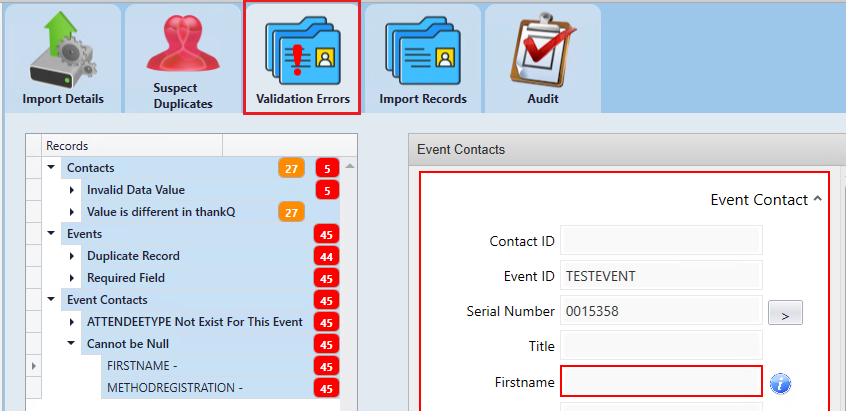
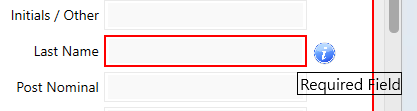
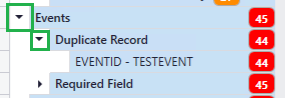
You can then track the individual reason why the error occurred by hovering over the i icon or by opening up the arrow next to the table name:
Here are some of the most common reasons for validation errors:
- Certain fields have been set as mandatory such as a Contact's Title or Last Name. In these cases you will need to fill in the required field, delete the record or switch off the requirement for that field to be mandatory. See the Validation Rules module to check your current validation rules:
- Trying to perform an update on an existing record such as a contact, payment, pledge, etc where the referenced ID does not exist. For example a payment's serial number points to a contact which is not in thankQ or a payment tries to pay for a Pledge ID that does not exist. You will need to check the original data to see if the ID is valid to begin with or in some cases this may be a side effect of deleting a record such as a contact but not deleting the related records such as Payments, Profiles, etc.
- Trying to import invalid data such as text in a number or date field.
- Trying to import invalid information such as trying to pass a value that is not in the lookup values for that field (such as a payment type which does not exist).
In general validation errors when they occur will be explained in data import so that you can fix the data issues involved.
In addition to Validation Errors you may get orange coloured warnings. These are similar to Validation Errors in that warnings will block the affected records from being imported until a decision is made regarding what do with the record. If you receive a warning you may do the following:
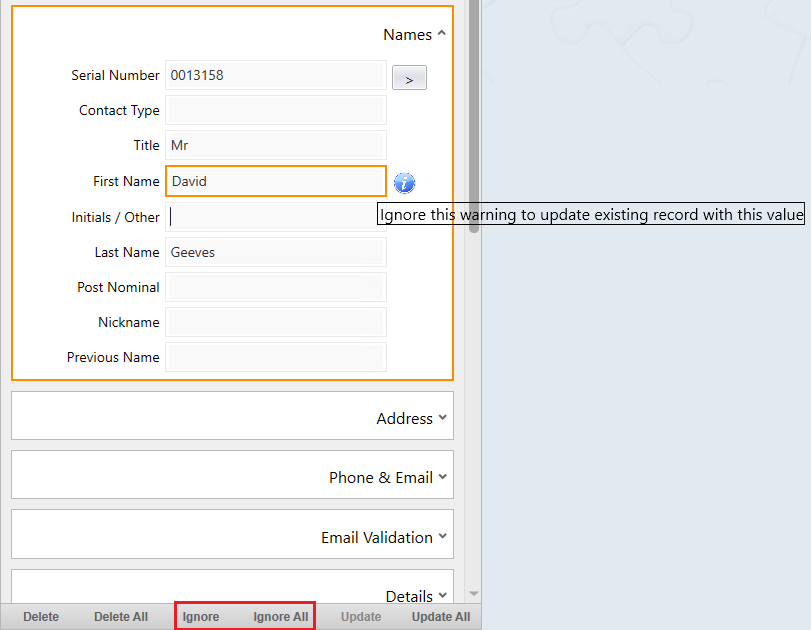
If you want to accept the incoming change, click Ignore to dismiss the orange warning. Click Ignore All if you want to dismiss all of the records with warnings:
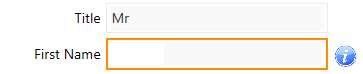
If you do not want to apply the incoming change, click into the field, remove the value, and then click Update or Update All for multiple record changes:

Caution: Do not click Delete unless you want to remove the entire incoming record from the import. Delete does not just remove the field value; it excludes the whole record from being imported. Delete All removes ALL records with a warning in it.

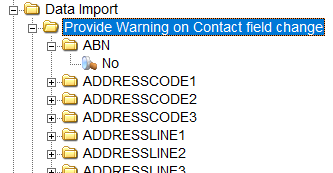
If you don't want warnings in the EDI or if you want to turn off warnings for certain fields please see the following Lookup Value folder:
Data Import --> Provide Warning on Contact field change
And switch off the checking for fields that you don't want warnings for: